How to Create a Webhook in GoHighLevel (GHL) Using Automation
In this guide, you’ll learn how to create a webhook URL in GoHighLevel using Automation (Workflow) to send lead data to your CRM.
Step 1. Go to Automation
Step 2. Create a New Workflow
- Click “+ Create Workflow”
- Choose “Start from Scratch”
- Give your workflow a name (for example: Real Estate Bees PPL Leads)
Step 3. Configure the Trigger (Inbound Webhook)
-
Click “Add Trigger” in your workflow.
-
From the trigger list, select “Inbound Webhook”.
-
After selecting Inbound Webhook, GoHighLevel will automatically generate a webhook url. Copy the generated webhook URL
-
Go to your Real Estate Bees (REB) account, open the integration settings, and paste the webhook URL into the appropriate field and click Сreate Integration
-
In the REB dashboard, click “Send Test Request” to send a test payload to GoHighLevel.
-
Go back to your GHL workflow and open the Inbound Webhook trigger.
-
In the Mapping Reference section, you will now see the incoming lead data (email, phone, name, source, custom fields, etc.).
Step 4. Create Contact and Opportunity
1 Click "+ Add Action"
2 Select "Create Contact"
3 Map lead fields from the Inbound Webhook (email, phone, name, custom fields, etc.)
4 Click “+ Add Action” again
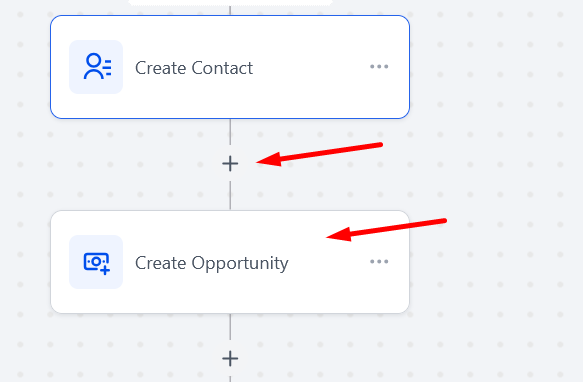
5 Select “Create Opportunity”
- Choose the pipeline and stage
- Map lead data to the opportunity fields (name, source, value, custom fields)

6 Click "Saved" and switch the workflow to "Publish"
- Choose the pipeline and stage
- Map lead data to the opportunity fields (name, source, value, custom fields)
6 Click "Saved" and switch the workflow to "Publish"
What should I learn next?